
What Types of Slack Channels Can You Sync with HubSpot for Enhanced Collaboration?

When we talk about syncing Slack channels with HubSpot, it’s crucial to understand the different types of channels involved and what each allows. The native HubSpot integration provides robust capabilities, which can then be extended further by third-party tools.
Fundamentally, you can sync:
- Public Channels: These are the most straightforward. Many HubSpot notifications, especially general alerts, can be sent to public channels by default once the integration is set up. They are ideal for broad team announcements and shared updates.
- Private Channels: For more sensitive or team-specific discussions, private channels can also receive HubSpot data. However, they require an additional step: the HubSpot app must be explicitly added to each private channel where you want notifications or syncing to occur. This ensures that information remains within the intended audience.
- Direct Messages (DMs): While not “channels” in the traditional sense, individual users can receive personalized HubSpot notifications directly in Slack DMs. This is useful for tasks, mentions, or specific alerts relevant only to that user.
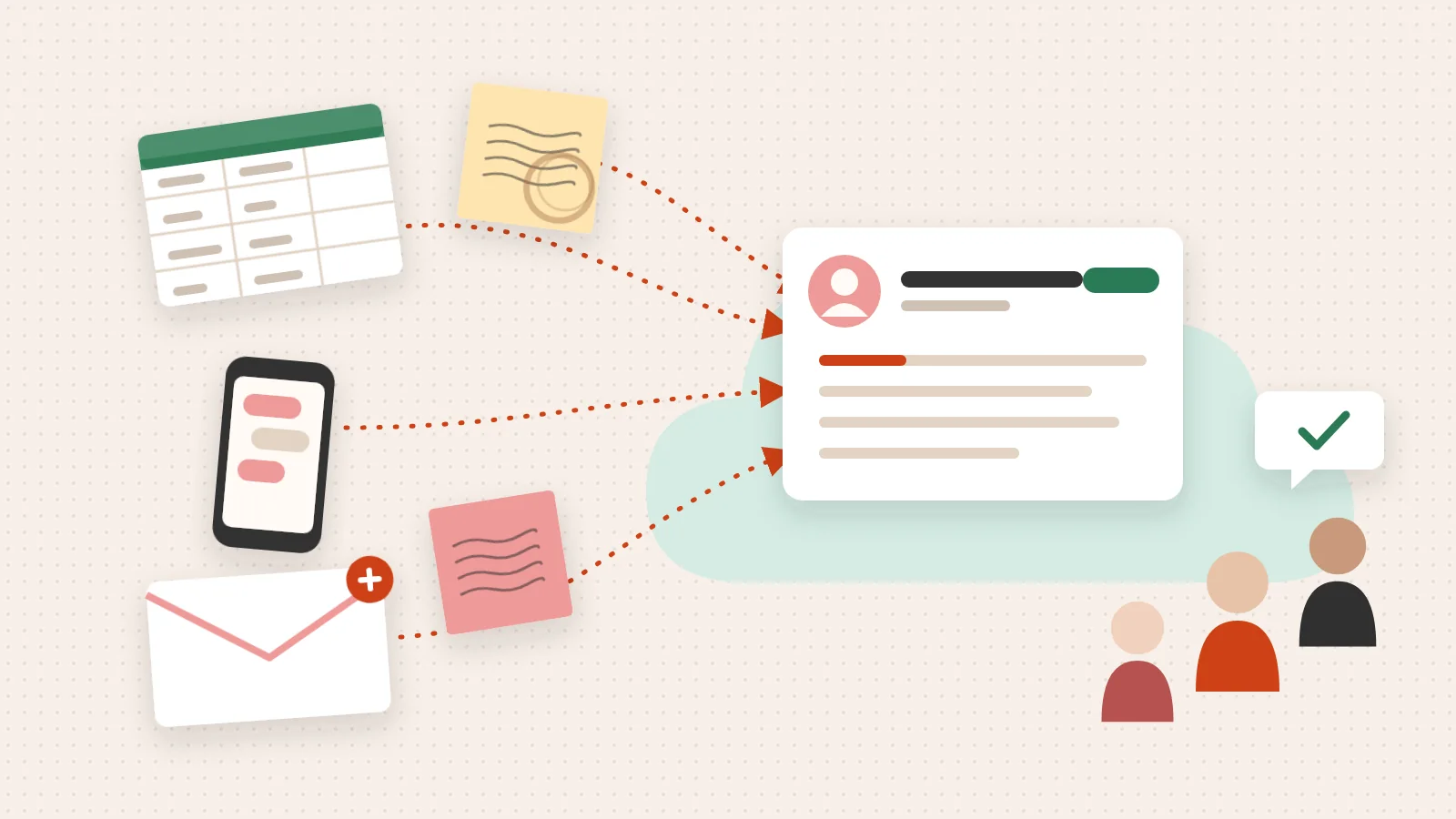
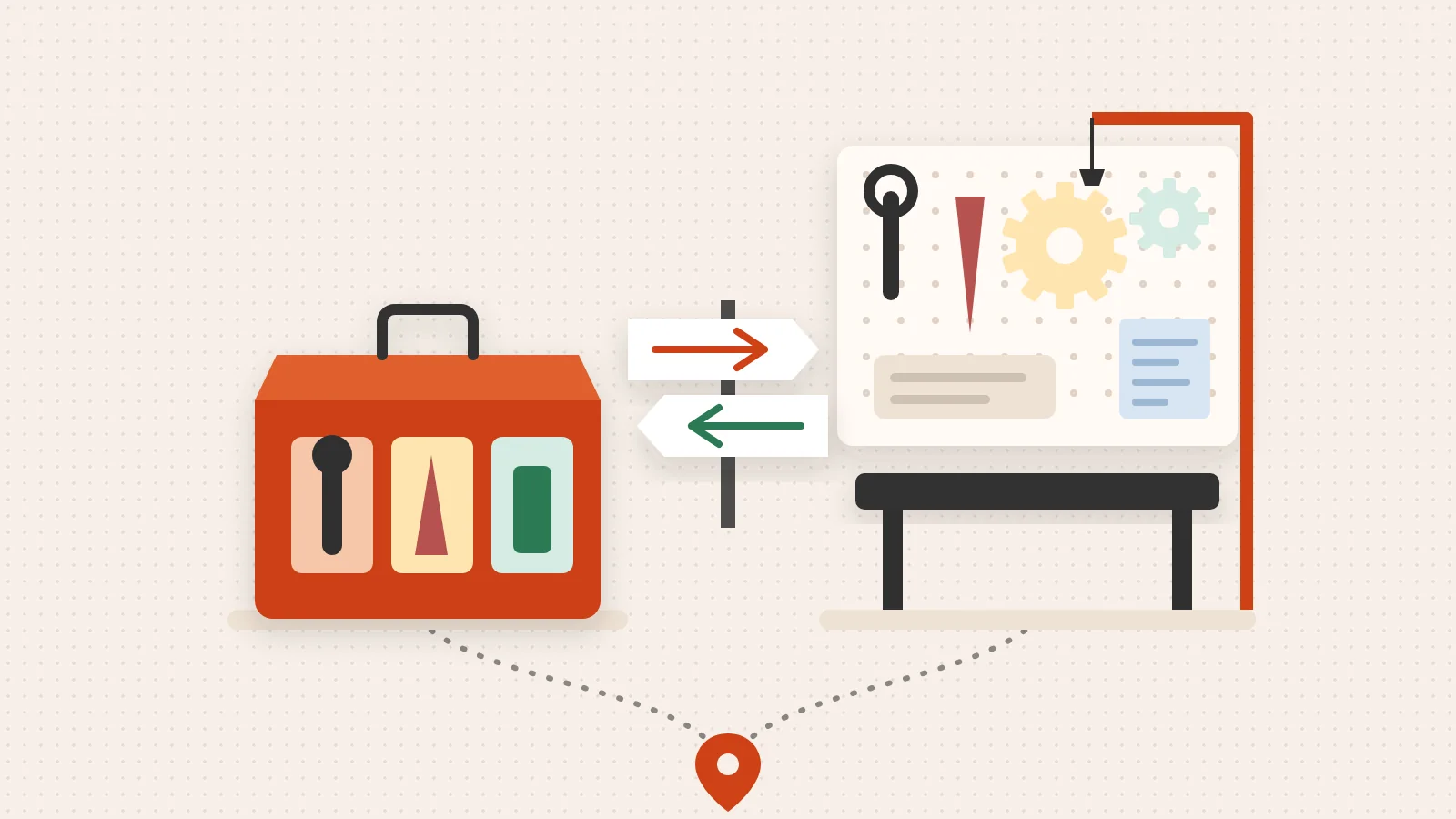
The scope of “syncing” can range from simple one-way notifications (HubSpot to Slack) to sophisticated bi-directional data exchange, where actions taken in Slack can update records in HubSpot and vice-versa. Understanding this distinction is key to designing an integration that truly supports your team’s workflow and reduces uncertainty in your processes.
How Do You Add the HubSpot App to Private Slack Channels for Syncing?
To ensure your private Slack channels receive HubSpot notifications and can participate in more advanced syncing, you’ll need to explicitly add the HubSpot app to each relevant private channel. This is a simple, yet critical, step for maintaining data privacy while still leveraging the integration’s power.
Here’s how we guide our clients through the process:
- From within Slack: Open the private channel you wish to integrate.
- Add an App: In the message input field, type
/addor click the “Add an app” button (often represented by a+icon or a paperclip icon, depending on your Slack version). - Search for HubSpot: In the app directory that appears, search for “HubSpot.”
- Add to Channel: Select the HubSpot app and confirm that you want to add it to the current private channel.
Once added, the HubSpot app will gain the necessary permissions within that specific private channel to post notifications, facilitate interactions, and enable bi-directional syncing features. This must be done for every private channel where you intend to sync HubSpot data.
How Do HubSpot’s Native Integrations Leverage Slack Channels for Different Business Needs?
HubSpot’s native integration offers distinct capabilities across its hubs, transforming Slack channels into dynamic collaboration spaces. This allows us to design systems where information flows naturally, supporting your team’s unique needs without forcing them to constantly switch between tools.
Can You Sync Help Desk Tickets to Slack Channels for Service Excellence?
For our clients utilizing Service Hub Professional and Enterprise, the ability to sync help desk tickets to Slack channels is a game-changer for customer service efficiency. This integration ensures that your support team can stay on top of customer needs without leaving their primary communication platform.
Here’s how we leverage this:
Subscription Requirements: This advanced syncing capability is available with Service Hub Professional and Enterprise subscriptions.
Filter-Based Syncing: You can configure precise filtering criteria based on ticket properties. This means only relevant tickets—perhaps those with “High Priority,” assigned to a specific “Team,” or reaching a certain “Status”—are sent to designated Slack channels. This prevents information overload and ensures the right team members see the right tickets.
Bi-directional Comment Syncing: A powerful feature is the bi-directional syncing of comments. Replies made within a Slack thread associated with a ticket will sync back to the HubSpot ticket’s comments, and vice-versa. This requires two key prerequisites:
- The ticket must have an associated conversation in HubSpot.
- Users must be mapped between HubSpot and Slack (their email addresses should match) to ensure proper attribution of comments.
Managing Tickets from Slack: Team members can manage ticket properties and even update a ticket’s status directly from Slack using embedded actions or slash commands. This reduces context switching, allowing for faster response times and more efficient resolution.
To configure ticket filtering criteria, you would typically navigate to your HubSpot settings, find the Slack integration, and set up a new “sync.” Here, you’ll select the target Slack channel and define the ticket properties (e.g., pipeline, status, priority, owner) that determine which tickets are sent. This strategic filtering ensures that your Slack channels remain focused and actionable.
Sync and manage help desk tickets in Slack
How Can You Drive Sales & Marketing Momentum with CRM Activity Notifications in Slack?
Beyond help desk tickets, HubSpot’s integration with Slack empowers sales and marketing teams across all HubSpot products and plans by delivering critical CRM activity notifications directly to Slack channels. This ensures that your team is always aware of important developments, fostering a proactive approach to customer engagement.
Consider these capabilities:
Broad Notification Availability: You can receive a wide array of notifications, including user notifications (like mentions, form submissions, and task reminders), live chat notifications, and activity notifications (covering calls, notes, emails, tasks, and meetings).
Targeted CRM Record Association: A key strength is the ability to associate specific Slack channels with CRM records such as companies, deals, or contacts. This means that a dedicated Slack channel for a high-value deal can receive all relevant activity updates, keeping the entire deal team informed in real-time.
Workflow Automation (Professional/Enterprise): For those on Professional and Enterprise subscriptions, HubSpot workflows unlock even greater power. We can design workflows to:
- Automatically Create New Slack Channels: For instance, a new high-value deal entering a specific stage could trigger the creation of a new private Slack channel, automatically inviting the relevant sales team members and associating it with the deal record.
- Send Custom Notifications: Workflows can send highly customized notifications to Slack channels or individual users, complete with personalization tokens and action buttons, enabling immediate follow-up or updates.
This level of integration transforms Slack from a simple chat tool into a dynamic extension of your CRM, ensuring that your team has the information they need, precisely when they need it, to drive sales and marketing momentum.
How Can You Streamline Conversations with Live Chat & Inbox Integration in Slack?
For businesses that rely on real-time customer communication, HubSpot’s integration with Slack for live chat and inbox management is invaluable. It allows your team to respond to customer inquiries efficiently, reducing delays and improving the customer experience.
Here’s how we help our clients leverage this:
- Dedicated Live Chat Channels: You can designate specific Slack channels to receive notifications for incoming live chat conversations from your website. This centralizes customer inquiries, making it easy for the right team to monitor and respond.
- Replying Directly from Slack: Team members can respond to customer conversations directly from within a Slack thread. These replies are then seamlessly synced back to the HubSpot Inbox, ensuring a unified communication history and preventing fragmented customer interactions.
- Logging Conversations and Creating Records: Beyond just replying, the integration allows you to log Slack messages as notes, create new tickets, or even tasks in HubSpot directly from a Slack conversation. This enables quick action and ensures that valuable customer insights from chat are captured in your CRM.
- Slack Reactions for Context: The HubSpot app often uses Slack reactions to provide status context for live chat messages, indicating whether a conversation has been assigned, replied to, or closed, offering visual cues for team coordination.
This functionality minimizes context switching, allowing your service and sales teams to manage customer interactions from their preferred communication platform, leading to faster resolutions and a more cohesive customer journey.
What Are the Essential Prerequisites and Best Practices for a Seamless Slack-HubSpot Sync?
Ensuring a smooth integration requires foundational setup and strategic planning to avoid common pitfalls and maximize efficiency. At The Way How, we believe that understanding these underlying requirements and best practices is crucial for building systems that truly remove uncertainty and drive predictable revenue.
What Prerequisites Are Needed for Successful Slack-HubSpot Syncing?
Before you can fully leverage the power of Slack-HubSpot syncing, a few key prerequisites must be met. Overlooking these can lead to frustration and incomplete data flow, undermining the very purpose of the integration.
Here’s what we ensure is in place for our clients:
Connecting the Slack App to Your HubSpot Account: This is the initial step. You’ll need to install the Slack app from the HubSpot App Marketplace and authorize the connection between your HubSpot portal and your Slack workspace.
Installing the HubSpot App in Private Slack Channels: As discussed, for any private Slack channel to receive notifications or participate in syncing, the HubSpot app must be explicitly added to that channel. Public channels often receive notifications by default, but private ones require this specific action.
User Mapping Between HubSpot and Slack: For features like bi-directional comment syncing on tickets or accurate attribution of actions, it’s vital that HubSpot and Slack users are mapped. This typically involves ensuring that the email addresses associated with users in both platforms match. If they don’t, HubSpot provides a process to verify and map them.
Permissions Required: To set up and manage the integration, you’ll need the appropriate administrative permissions:
- HubSpot: A Super Admin or a user with App Marketplace permissions is required.
- Slack: You’ll need administrator access in the Slack workspace to install and configure the app.
Single Slack Workspace Limitation: The native HubSpot integration allows for connecting only one Slack workspace per HubSpot account. If your organization uses multiple Slack workspaces, you’ll need to consider alternative solutions (like Zapier or other third-party tools) for integrating the additional workspaces.
Addressing these prerequisites upfront lays a solid foundation for a reliable and effective integration, ensuring that your communication and CRM systems work in harmony.
How Can You Design Your Sync Strategy for Clarity and Impact?
Simply connecting HubSpot and Slack isn’t enough; the real value comes from a thoughtfully designed sync strategy. This is where strategic clarity and understanding human behavior truly come into play. Our approach at The Way How is to move beyond mere technical setup and help you design systems that reduce noise, highlight critical information, and ensure your team acts on what matters most.
Here are our best practices for designing an impactful sync strategy:
- Customize Ticket Filters to Prevent Overload: Don’t just send all tickets to Slack. Customize your ticket filtering criteria to send only relevant tickets to specific Slack channels. For example, high-priority tickets might go to a dedicated “Urgent Support” channel, while general inquiries go to a broader “Customer Service” channel. This prevents information overload and ensures that team members only receive notifications pertinent to their responsibilities.
- Associate Slack Channels with Primary Records Before Merging: If you’re merging records in HubSpot (e.g., duplicate contacts or companies), ensure that any associated Slack channels are linked to the primary record you intend to keep. This preserves your channel associations and prevents broken links or lost context.
- Leverage Workflows for Targeted Notifications: Use HubSpot workflows (available in Professional/Enterprise) to create new channels or send highly targeted notifications based on specific triggers. For instance, a workflow could create a new private channel for a new enterprise client, automatically inviting the account management team, or send a celebratory notification to a “Wins” channel when a deal closes.
- Establish Clear Slack Channel Naming Conventions: Implement consistent naming conventions for your Slack channels (e.g.,
sales-new-leads,support-escalations,deal-acme-corp). Keep names concise (80 characters or less, lowercase, hyphens/underscores) to maintain order and make channels easily discoverable. - The Way How’s Perspective: Design for Human Cognition: This is where our psychology-first approach shines. Don’t just sync everything; design systems that reduce noise and highlight critical information, ensuring your team acts on what matters most. We diagnose the “certainty gaps” in your customer journey – moments where your team might hesitate or miss opportunities due to unclear information. By strategically syncing information, we create a clear path for action. This prevents information overload and decision paralysis, aligning your communication flow with your revenue strategy and fostering a culture of informed, confident decision-making.
By thoughtfully planning your sync strategy, you transform your integration from a mere technical connection into a powerful engine for predictable growth and enhanced team collaboration.
When Should You Consider Extending Native Sync Capabilities with Third-Party Tools?
While HubSpot’s native integration with Slack is powerful, specific business needs or complex workflows may require additional tools to bridge “certainty gaps” in your data flow. We often find that our clients, especially those with unique operational nuances, benefit from extending these capabilities.
What Role Does Zapier Play in Extending Slack-HubSpot Channel Syncing Beyond Native Integration?
Zapier acts as a versatile bridge, enabling custom, no-code automations between HubSpot and Slack that go beyond the native integration’s scope. When your specific requirements demand a more tailored approach, Zapier can fill those gaps, ensuring every piece of information finds its way to the right Slack channel.
Here’s how we often see Zapier being used:
Custom, No-Code Automations: Zapier allows you to create “Zaps” that connect HubSpot triggers to Slack actions without needing any coding. This flexibility is invaluable for unique business processes.
Diverse Triggers and Actions:
- HubSpot Triggers: You can initiate Zaps based on a wide range of HubSpot events, such as a new contact being created, a new deal stage update, a form submission, a new ticket, or specific property changes on any record.
- Slack Actions: These triggers can then perform various actions in Slack, including sending channel messages, sending direct messages to specific users, posting to public channels, or even adding reactions to messages.
Flexibility for Specific Needs: If the native integration doesn’t offer a specific notification type or a particular data transfer you require, Zapier can often bridge that gap. For example, you might want to send a Slack message with very specific formatting or to a channel based on a custom HubSpot property value.
Compliance and Audit Trails: For many enterprise-grade automations, Zapier offers robust features like full audit trails and controls, along with SOC 2 and GDPR compliance, providing peace of mind for sensitive data flows.
By leveraging Zapier, you gain the agility to create highly specific notifications or data transfers that precisely match your team’s workflow, ensuring that no critical information falls through the cracks.
HubSpot Slack Integration - Quick Connect - Zapier
Are There Specialized Integrations for Deeper Customer Channel Syncing?
Beyond general automation tools like Zapier, there are specialized integrations designed for even deeper, more nuanced syncing, particularly for customer-facing teams. One such example is tools like Channeled, which focus on synchronizing customer-specific Slack channels with HubSpot.
Here’s how these specialized tools can enhance your integration:
- Bi-directional Syncing of Channel Owners and Statuses: Tools like Channeled enable the syncing of channel owners and lifecycle statuses directly between Slack and HubSpot. This means that if a customer success manager (CSM) is assigned to a customer in HubSpot, that information can automatically reflect in the associated Slack channel, and vice-versa.
- Selective Syncing of Slack Activity and Notes: These integrations allow for logging specific Slack activity—like saved messages or key discussions—directly into HubSpot’s activity feed. You can often choose between manual logging for curated updates or automatic logging for a comprehensive record.
- Mapping Customer Channels to Individual HubSpot Companies: A core feature is the ability to map specific customer-facing Slack channels (e.g., a shared channel with a client) directly to individual HubSpot company records. This provides a unified view of all customer interactions, whether they occur in Slack or HubSpot.
- The Way How’s Perspective: Diagnosing “Certainty Gaps”: While native integrations offer a strong foundation, complex business needs often require a more tailored approach. We help diagnose these “certainty gaps” – moments where your team lacks complete information or a clear path forward in customer interactions. By integrating specialized tools, we design robust, integrated systems that align with your unique sales and marketing psychology. This ensures every tool serves a clear strategic purpose, centralizing customer data and communication, and ultimately contributing to predictable revenue by empowering your team with complete and actionable insights.
These specialized integrations are particularly valuable for customer success, account management, and support teams who need a holistic view of customer health and engagement across all communication touchpoints.
How Can You Effectively Manage and Optimize Your Slack-HubSpot Channel Syncs?
Maintaining an efficient and effective integration requires ongoing management and optimization. Just as a well-designed system needs careful calibration, your Slack-HubSpot syncs demand attention to ensure they continue to serve your team’s needs and contribute to predictable revenue.
What Happens When You Edit, Turn On/Off, or Delete a Slack Sync in HubSpot?
Managing your Slack syncs in HubSpot involves understanding the lifecycle of these connections. You’ll have control over editing their criteria, toggling their active status, and even permanently deleting them.
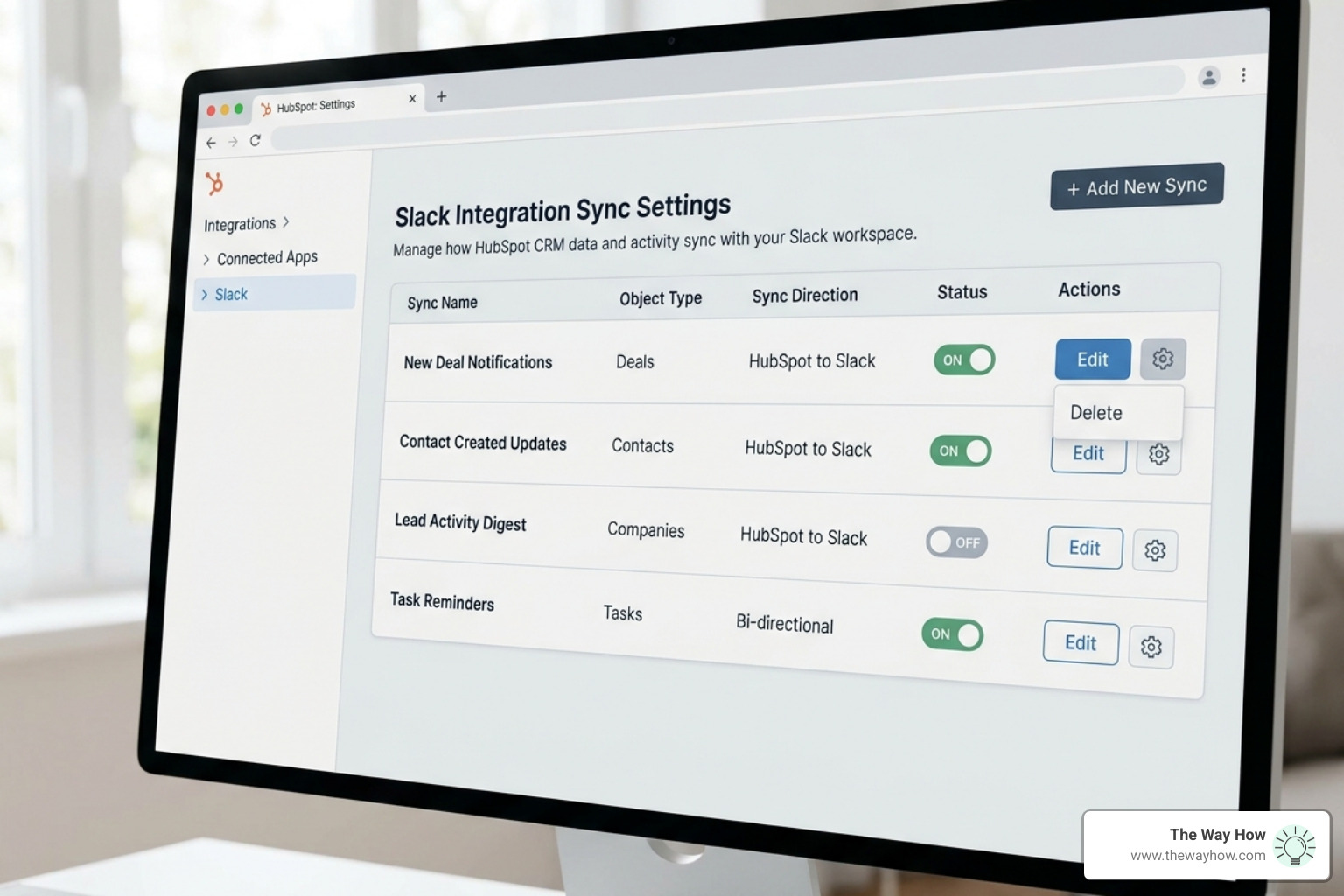
- Editing a Sync: When you edit an existing sync, you’re typically modifying its filtering criteria (e.g., changing which ticket properties trigger a notification) or adjusting the target Slack channel. Once saved, the changes will apply to all future notifications or data transfers for that specific sync. Any existing messages or data already synced will remain, but new ones will adhere to the updated rules.
- Turning a Sync On/Off: Toggling a sync “off” temporarily pauses its functionality. HubSpot will stop sending notifications or syncing data according to that specific configuration. This is useful for temporary pauses, testing, or during periods when a channel might be undergoing changes. Toggling it “on” resumes the sync from that point forward. No data is lost when a sync is turned off; it simply ceases to operate until reactivated.
- Deleting a Sync: Deleting a sync permanently removes that specific integration configuration from HubSpot. This means HubSpot will no longer send any notifications or attempt to sync data based on those rules. This action is irreversible for the configuration itself, though you can always create a new sync from scratch. Deleting a sync does not delete any messages or data that have already been sent to Slack or synced to HubSpot prior to the deletion.
Best practices for managing multiple syncs include regularly reviewing your active syncs in HubSpot’s integration settings. This ensures that all configurations remain relevant, prevent redundant notifications, and align with your current team structures and strategic objectives.
How Can You Troubleshoot Common Sync Issues and Prevent Information Overload?
Even with the best planning, integration issues can arise. Knowing how to troubleshoot common problems and, more importantly, how to prevent information overload, is vital for maintaining a healthy and productive Slack-HubSpot environment.
Here’s our guidance for effective management:
Identifying Common Sync Failure Reasons:
- Incorrect Permissions: Ensure that both the HubSpot user setting up the sync has Super Admin or App Marketplace permissions, and the HubSpot app has been added to the specific private Slack channel.
- Unmapped Users: For bi-directional syncing of comments or accurate attribution, confirm that HubSpot and Slack user emails are correctly mapped.
- Channel Changes: If a Slack channel is renamed, archived, or deleted, the associated sync in HubSpot may break. Always update the sync configuration in HubSpot if channel details change.
- Subscription Requirements: Verify that your HubSpot subscription (e.g., Service Hub Professional/Enterprise for ticket syncing) meets the requirements for the features you’re trying to use.
Strategies for Preventing Notification Fatigue:
- Refine Filtering Criteria: Be ruthless with your filters. Only send truly actionable or critical information to Slack. Over-notifying leads to team members ignoring all notifications.
- Dedicated Channels: Create specific channels for specific types of notifications (e.g.,
#sales-new-leads,#support-escalations,#marketing-form-submissions). This allows team members to follow only the channels relevant to their role. - Workflow Control: Use HubSpot workflows to control the frequency and content of notifications. Avoid sending duplicate notifications for the same event.
Regular Review and Refinement: Periodically review your sync filters and channel associations (e.g., quarterly). As your team grows or processes evolve, your integration needs will change. What was relevant yesterday might be noise today.
Clear Internal Guidelines: Establish clear internal guidelines for how your team should use integrated channels. Define when to reply in Slack, when to engage in HubSpot, and what types of information belong in which channel. This provides clarity and reduces uncertainty for your team.
By proactively managing your syncs and fostering a culture of intentional communication, you can ensure that your Slack-HubSpot integration remains a powerful tool for collaboration, rather than a source of distraction.